
Project knowledge.
Kept in context.
Give a client, engagement or internal initiative its own files, conversations and collaborators. VectorXS project knowledge is available to the people and chats inside that project.
Files that stay
with the project.
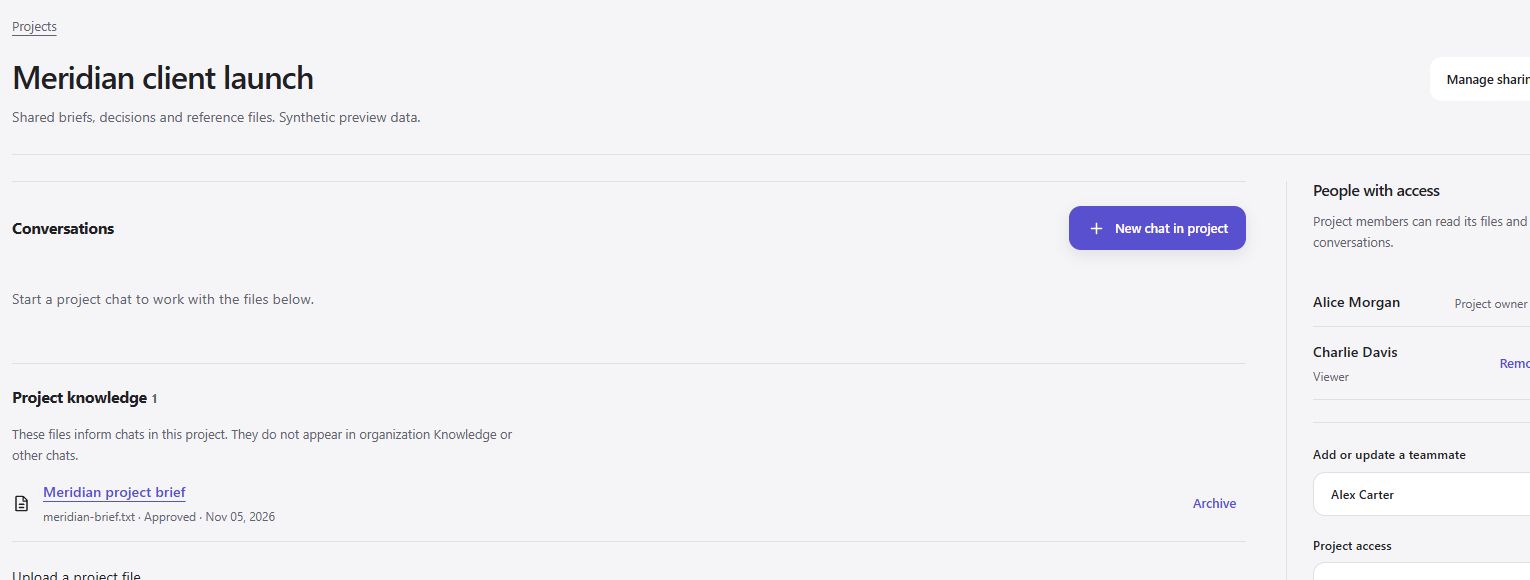
Upload a brief, guide or other supported reference file from the project itself. The file is indexed as project knowledge and can inform chats started within that project. It is excluded from the organization-wide Knowledge list, unrelated chats and other projects. Your organization’s upload rules, file-size limits and storage allowance still apply.
Start a conversation using New chat in project so the conversation is bound to the correct project. A chat with project history cannot be moved out to bypass those boundaries. Source previews and downloads check project access too, so a copied link does not become a public file.
Share with
the right people.
Project owners can add teammates and choose Editor or Viewer access. Editors can participate in chats and add reference files. Viewers can read conversations and access the project’s files. Owners can update access or remove a collaborator when the work changes.
Removing project access also removes access to its chats, source previews and downloads through VectorXS. It cannot recall a file someone already downloaded. Private connected accounts retain their own boundaries even within a shared project; sharing the project does not share a teammate’s personal inbox.
Read about workspace accessFrom reference
to next step.
Keep project questions close to the files that answer them. Use the Assistant to work through a draft, compare details or prepare a next step, then check the original material. Supported external actions still require explicit review. Project membership does not grant permission to act through another person’s connected accounts.
Projects are included in the VectorXS workspace experience. Choose a hosted workspace or use the customer-server installer, then invite your organization’s members and add the people who belong in each project.
Choose a workspace plan